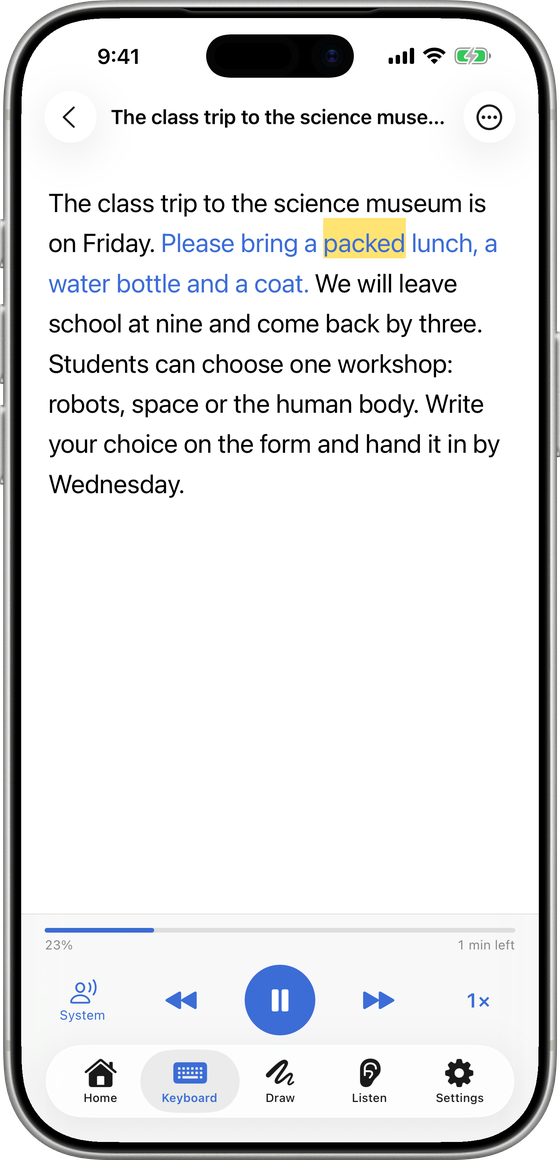
In Speech Assistant, open Keyboard ▸ Read, add any text, and tap play: it is read aloud with each word highlighted as it is spoken.
How do I add text to read?
- Open the Keyboard tab and switch to Read.
- Tap + (or Type Text).
- Choose a source:
- Paste from Clipboard: text you copied in another app.
- Scan Document: the camera reads a printed page.
- Text from Photo: reads the words in a picture.
- Import PDF or File: a PDF, text or document from Files.
- Type Text: write or paste it yourself.
Reading the text from a page or photo happens on your device.
How do I listen?
- Tap the blue play button. The current word is highlighted.
- Tap any word to start from there.
- Use the previous and next sentence buttons to move around.
- The bar shows your progress and the minutes left. Speech Assistant remembers where you stopped.
Can I change the speed, voice or text size?
- Speed: 0.5×, 0.75×, 1×, 1.25×, 1.5×, 1.75× or 2×.
- Voice: the System voice is free. Natural voices are part of Premium; see how to choose one.
- Text size: More ▸ Smaller / Larger.
- More also lets you edit, share or delete the text.
Who is it useful for?
- People who find reading hard or tiring, and want to follow along word by word.
- Families and therapists who want a letter, a school note or a story read aloud.
- AAC users who want to listen to a long text, then reply on the same app's boards.
What is free and what is Premium?
- Free: one saved text, with the iPhone's voices.
- Premium: unlimited texts and natural voices.
Read Aloud is a reading aid, not a therapy or a medical tool. A speech-language therapist can advise on reading support for an individual.
Questions people ask
Is Read Aloud free?
One text is free, read with your iPhone's voices. Premium keeps unlimited texts and adds natural voices.
Can it read a printed page?
Yes. Choose Scan Document and point the camera at the page; the text is recognised on your device and then read aloud.
Can I change how fast it reads?
Yes. Pick a speed from 0.5× to 2×, and make the text larger or smaller from the More menu.
Did this answer your question?

Speech Assistant - AAC Pad
Free AAC for iPhone, iPad and Apple Watch.