‹ All articles
Tutorials

Natural voices in Speech Assistant: how to choose and use one

The Speech Assistant Team
October 2026 · 3 min read
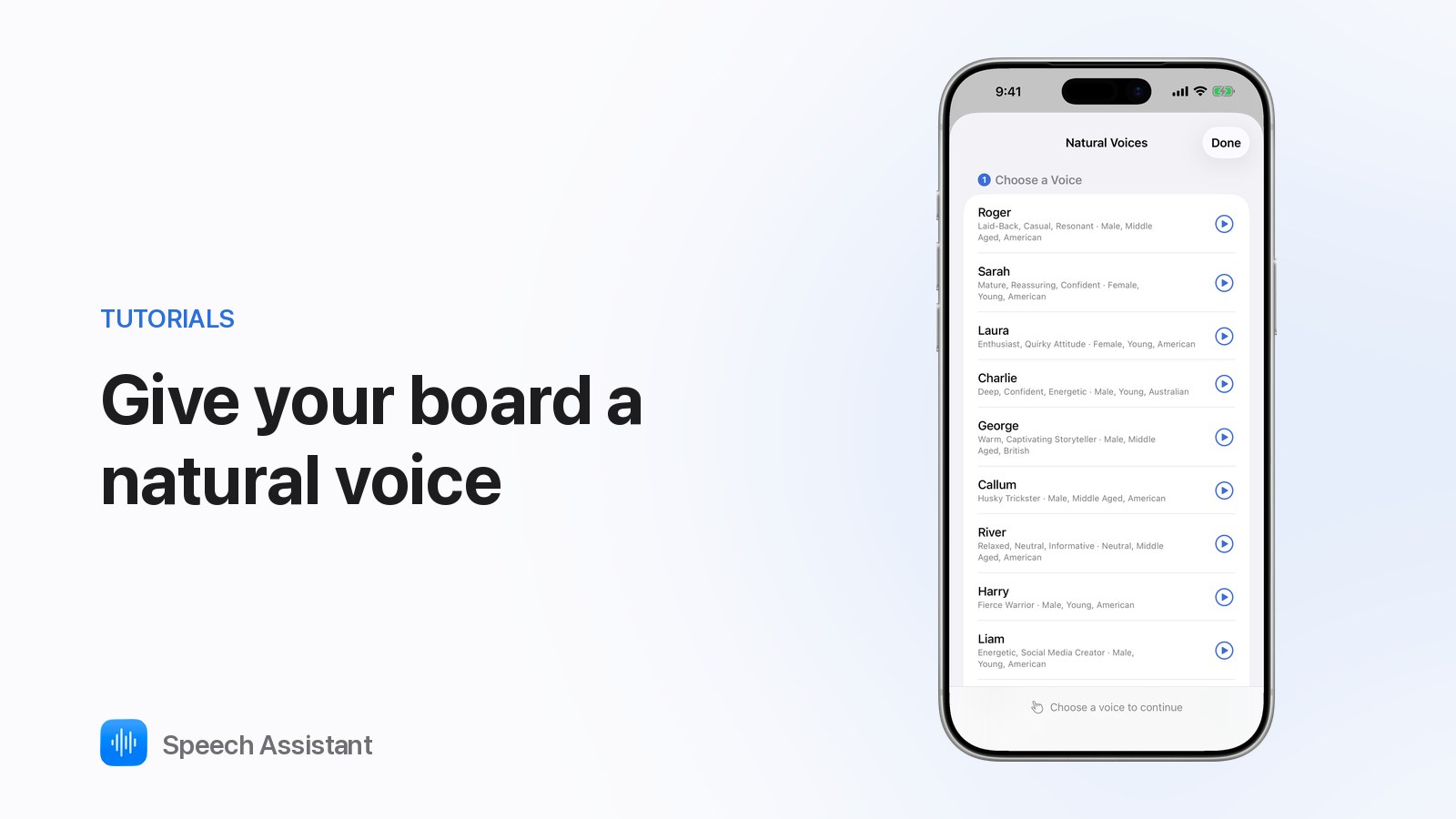
Natural Voices in Speech Assistant on iPhone, with a list of voices to choose from

Natural voices give the phrases on your boards a lifelike, human-sounding voice instead of the standard computer voice.
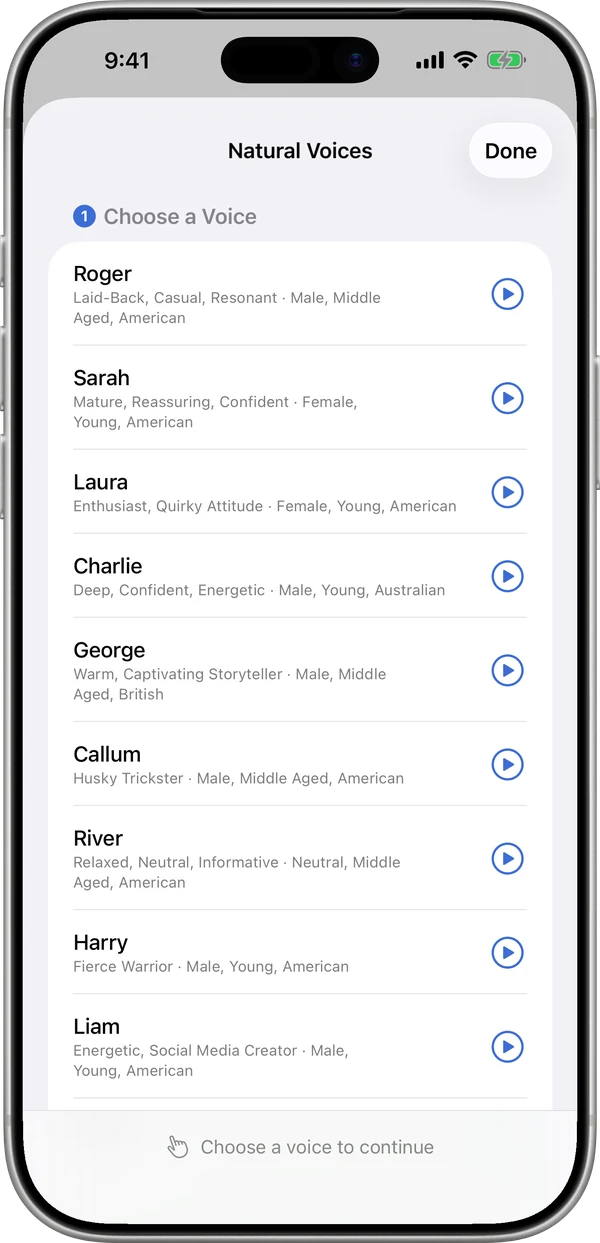
Where do I find them?

Speech Assistant Natural Voices list with Roger, Sarah, Laura and more, each with a play button

How do I choose a voice?

  1. Tap ▶ next to a voice to hear a sample.
  2. Tap the voice you like. The list shows its style, for example calm, warm or energetic, and its accent.

How do I apply it to my boards?

  1. Under Apply to Boards, tick the boards you want, or Select All.
  2. Tap Apply "Voice" to … phrases at the bottom.
  3. Wait a moment while the audio is prepared. You'll see All phrases speak in … when it's done.

Until you apply, your phrases keep the old voice.
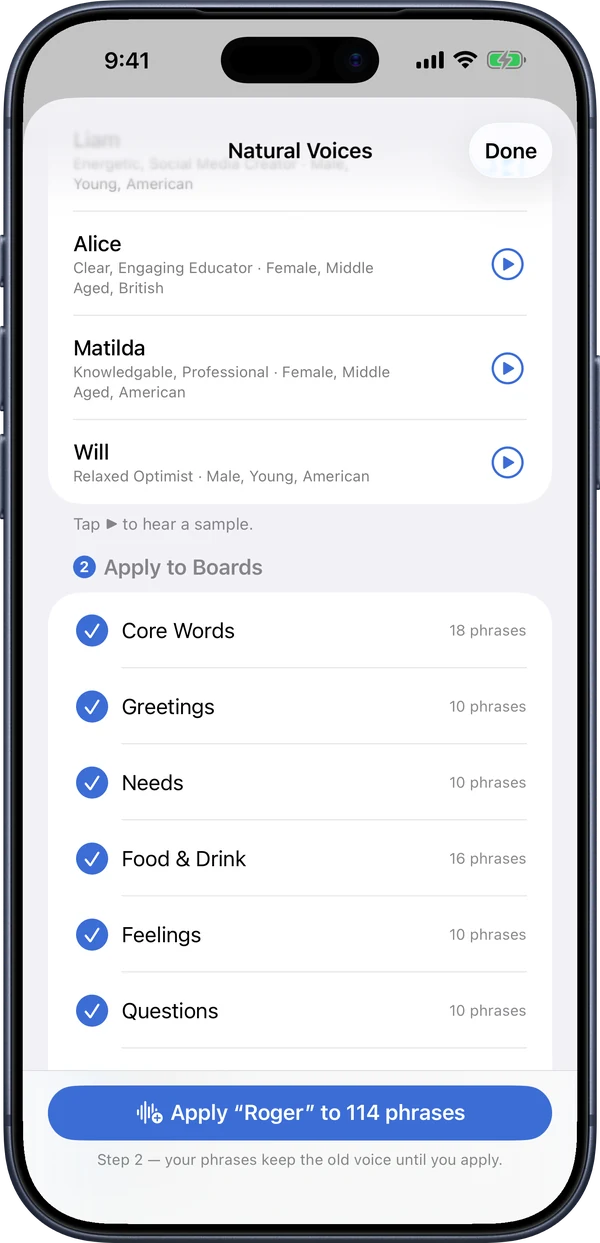
Speech Assistant Apply to Boards step with boards ticked and the Apply button

What does the natural voice speak?

Good to know

Questions people ask

Do natural voices work offline?

Yes, once applied. The audio is prepared once and saved, so your phrases speak without internet, on Apple Watch too.

Do natural voices speak what I type on the keyboard?

Not yet. Typed text uses your system voice, which you choose in Settings ▸ Speech ▸ Voice.

Will it replace phrases I recorded myself?

No. Phrases with your own recording always keep it.

Are natural voices part of Premium?

Everyone can apply one voice to their boards once. Changing voices, new phrases in the voice and natural voices in Read Aloud are part of Premium.

Speech Assistant - AAC Pad
Free AAC for iPhone, iPad and Apple Watch.
Download on the App Store